

 See My Latest Article on HelloNation
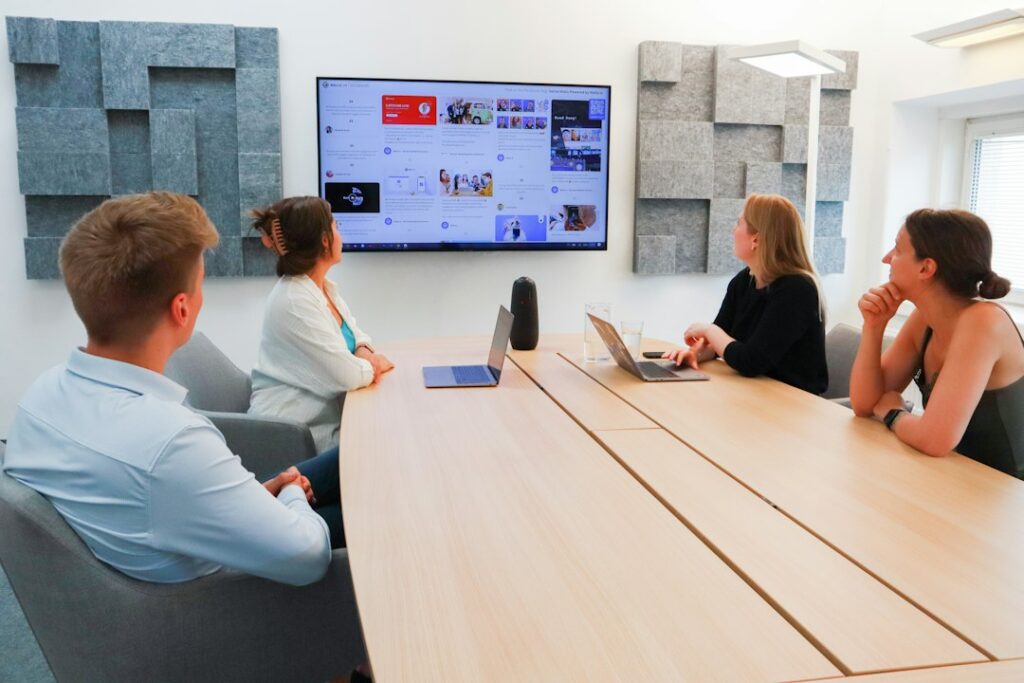
Wireless presentation systems allow people to share a laptop, tablet, or phone screen on a television, projector, or meeting-room display without passing around cables. Used thoughtfully, they can make meetings easier to start, reduce clutter, and help participants contribute from different seats or devices.
The technology is useful in home offices, classrooms, conference rooms, community spaces, and multipurpose rooms. Its effectiveness depends less on the display itself than on network design, device compatibility, room layout, and clear operating habits.
What is a wireless presentation system?
A wireless presentation system is a combination of software, network connections, and receiving hardware that transfers visual content from a personal device to a shared screen.
Some systems use a local Wi-Fi network. Others establish a direct connection between the source device and the display. Common methods include screen mirroring, casting, and wireless display standards built into modern computers and mobile devices.
The main difference between these methods is how they handle the connection:
- Screen mirroring duplicates the entire device screen, including open windows and notifications.
- Casting sends selected content, such as a video or presentation, to the display while the device may remain available for other tasks.
- Direct wireless display connections can work without the same type of shared network, depending on the devices involved.
A receiving unit may be built into a display, connected through an HDMI port, or integrated into a room-control system.
How does wireless presentation improve collaboration?
Wireless sharing reduces the time and friction involved in moving from one presenter to another. A participant can share a document, spreadsheet, diagram, or video without disconnecting the previous presenter’s cable.
That flexibility supports several useful meeting patterns:
- Multiple people can contribute from different operating systems.
- Participants can compare documents side by side.
- Remote attendees can follow the same visual material as people in the room.
- A presenter can remain seated instead of standing beside a control panel.
- A group can switch between formal presentations and informal discussion more naturally.
In a home setting, the same idea can support family planning, remote work, tutoring, creative projects, or viewing security and automation dashboards on a larger screen.
Wireless presentation does not automatically make meetings more collaborative. It simply removes one common barrier. People still need a clear process for deciding who shares, how content is discussed, and when private information is removed from the display.
What equipment is needed?
A basic setup usually includes four parts:
1. A shared display, such as a television, projector, or commercial monitor.
2. A receiving device or built-in wireless capability that accepts the presentation signal.
3. A reliable network or direct wireless connection.
4. Source devices, including laptops, tablets, and phones.
The display should be bright enough for the room and positioned where every participant can read text comfortably. A large screen does not compensate for poor viewing angles, glare, or small presentation fonts.
For larger rooms, audio may need separate attention. Wireless screen sharing can transmit video while leaving meeting audio dependent on the laptop, display speakers, soundbar, or room sound system. Testing both picture and sound prevents a common problem: the slides appear correctly, but remote participants cannot hear the discussion.
Does wireless presentation require Wi-Fi?
Not always. Some technologies use the existing Wi-Fi network, while others use a peer-to-peer connection between the device and receiver. The exact requirements depend on the operating system, receiver, and security settings.
Devices using network-based sharing generally need to see one another on the same local network. If a laptop is connected to a guest network while the receiver is on a private network, the display may not appear in the available-device list.
Network separation can be useful for security, but it must be designed so authorized presentation traffic is still allowed. In offices, this may require coordination between the wireless network, firewall, access points, and display receiver.
For a home office, placing the receiver and work devices on a dependable part of the home network usually provides a better experience than relying on a weak signal at the edge of the house.
What security settings should be used?
Wireless presentation should be treated as a network-access feature, not just a convenient screen function. Anyone who can share to a display may be able to expose private messages, customer information, passwords, or meeting documents.
Useful safeguards include:
- Require a passcode or device approval when the system supports it.
- Give each display a clear room name so users do not select the wrong screen.
- Restrict sharing to approved users or devices where practical.
- Keep presentation receivers and network equipment updated.
- Avoid placing business displays on an unrestricted guest network.
- Disable automatic sharing if the room is used for confidential work.
- Stop mirroring before opening email, banking, patient information, or internal files.

Mirroring is particularly easy to misuse because everything visible on the source screen may appear on the shared display. Presenters should close notifications and unrelated applications before sharing.
Why do wireless presentations sometimes lag or disconnect?
The most common causes are weak signal strength, crowded wireless channels, network congestion, incompatible software, or a receiver that has not been updated.
Video-heavy content places greater demands on the connection than a simple slide deck. Streaming video, large animations, and high-resolution graphics may expose limitations that are not noticeable during ordinary document sharing.
Room conditions also matter. In Tucson, AZ, many spaces rely heavily on air conditioning during hot periods, and equipment may be installed in enclosed cabinets or near heat-producing electronics. Excess heat can shorten the life of network and display equipment. Dust can also collect around vents and filters, especially in rooms that open frequently to the outdoors.
A few practical improvements often help:
- Place the receiver where it has adequate ventilation.
- Keep access points clear of dense obstructions and metal enclosures.
- Use wired network connections for fixed receivers when possible.
- Reduce unnecessary wireless traffic during important meetings.
- Test the system from the seats where presenters will actually work.
- Keep a wired HDMI or USB-C connection available as a backup.
A backup cable is not a failure of wireless design. It is a sensible precaution for high-stakes presentations.
How should a room be designed for shared screens?
The best setup makes the technology easy to understand without requiring a detailed explanation. A short onscreen instruction can identify the display, explain how to connect, and show where to find the passcode.
Furniture arrangement should allow participants to see the display without turning away from one another. In rooms with windows, glare can be more disruptive than screen size. Shades, display placement, and brightness settings may matter more than purchasing a larger panel.
In multipurpose rooms, consider how the space changes throughout the day. A screen that works for a small meeting may be too low, too distant, or poorly positioned for a larger gathering. A receiver should also remain accessible for maintenance without creating loose cables or exposed power connections.
Is wireless presentation better than wired connections?
Wireless presentation is more convenient, but wired connections are generally more predictable. A cable avoids many discovery, compatibility, and network problems. Wireless sharing is valuable when several people need to contribute quickly, while a wired connection remains useful for high-resolution content, long presentations, or troubleshooting.
A practical room often supports both. Wireless sharing can be the normal method, with a labeled cable stored nearby for devices that cannot connect or for situations where reliability matters more than convenience.
The most effective system is not necessarily the one with the most features. It is the one that lets people share appropriate content securely, understand the connection process, and continue the meeting when a device or network behaves unexpectedly.